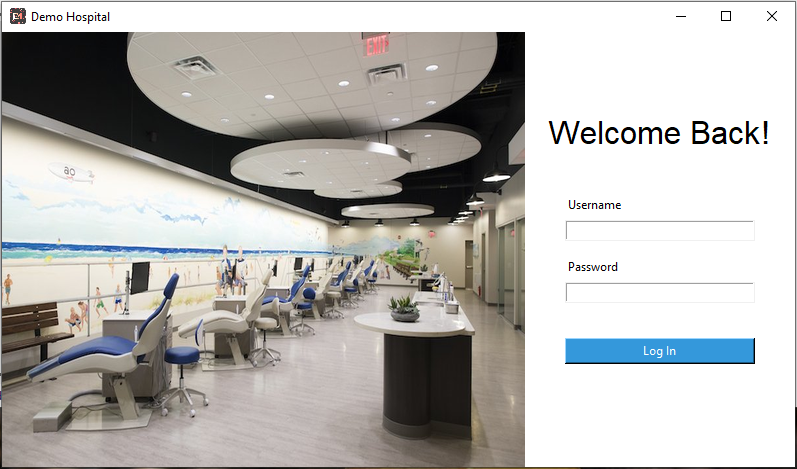
In this tutorial we shall be using our offsite cloud server
Which is accessible in the demo version
Username; 1
Password; 1
Username; 2
Password; 2
Username; 3
Password; 3
Username; 4
Password; 4
Username; 5
Password; 5
Username; 6
Password; 6
Only Administrators can do this.
Accounts section
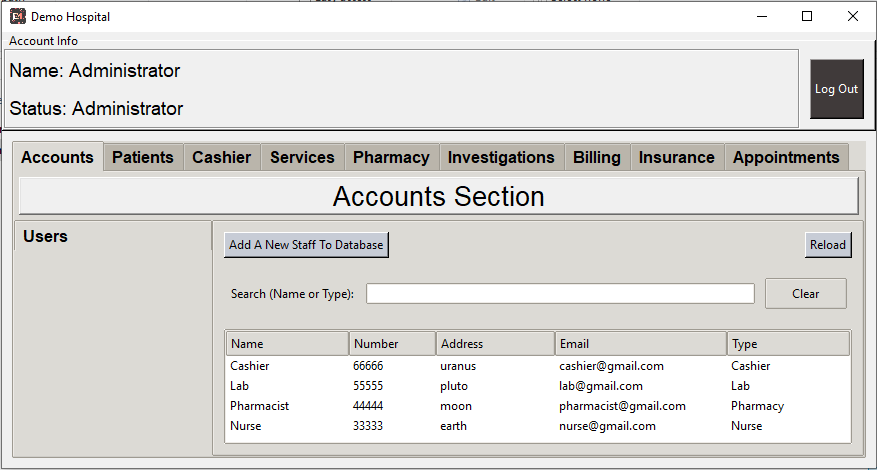
Add a new staff
Click Add A New Staff To Database
Fill in the relevant information
Edit/delete staff information
Click any staff in the list
Administrator
Doctor with supervision rights
Nurse with supervision rights
Lab with supervision rights
Services
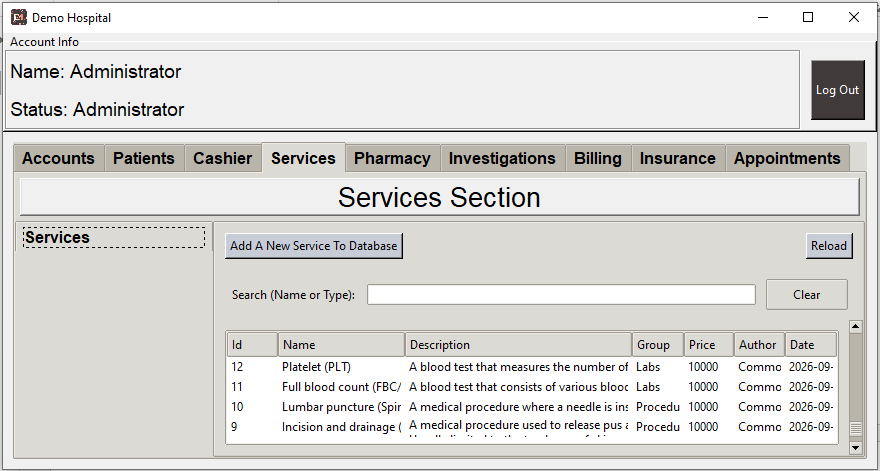
Add a new service
Click Add A New Service To Database.
Fill in the relevant information.
Edit/delete service information.
Click any service in the list.
Administrator
Doctor with supervision rights
Nurse with supervision rights
Pharmacist with supervision rights
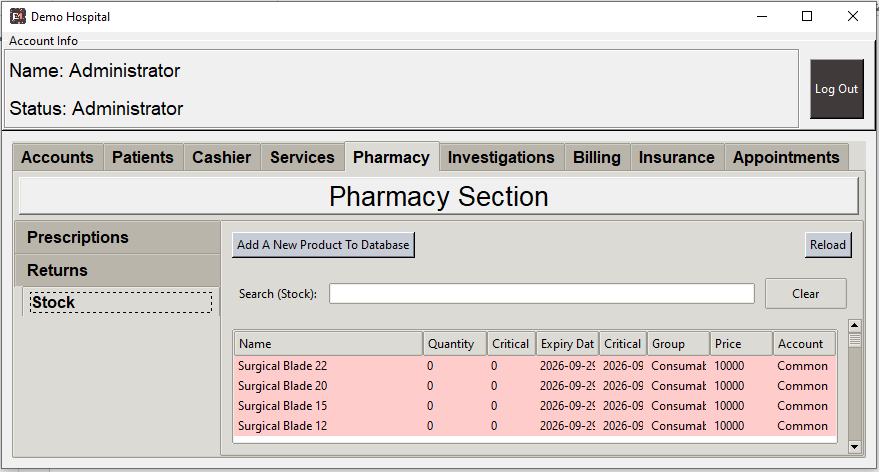
Pharmacy
Add a new drug or service.
In the Stocks tab, click Add A New Product To Database.
Fill in the relevant information.
Edit/delete stock information.
Click any product in the list.
Administrator
Cashier with supervision rights
Pharmacy
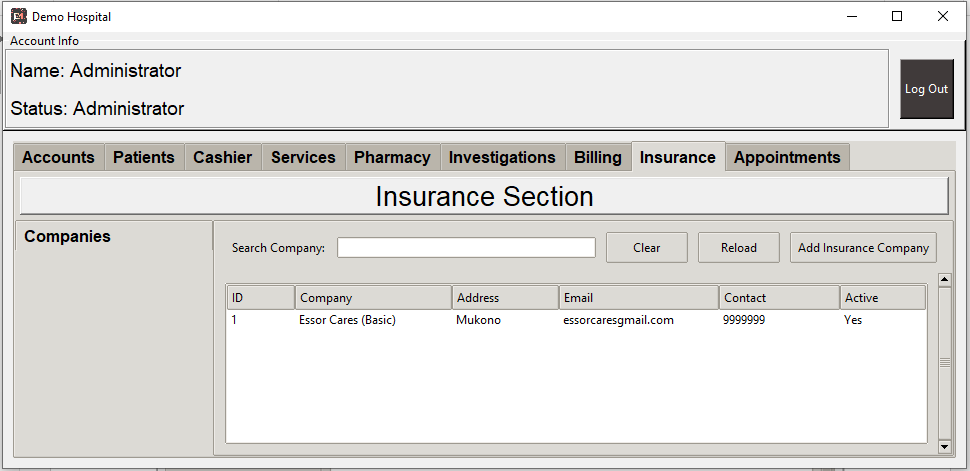
Add a new insurance company
Click Add Insurance Company
Fill in the relevant information
Edit/delete insurance information
Click any company in the list and edit as necessary
Administrator
Doctor
Nurse
Patients
Add a new insurance company
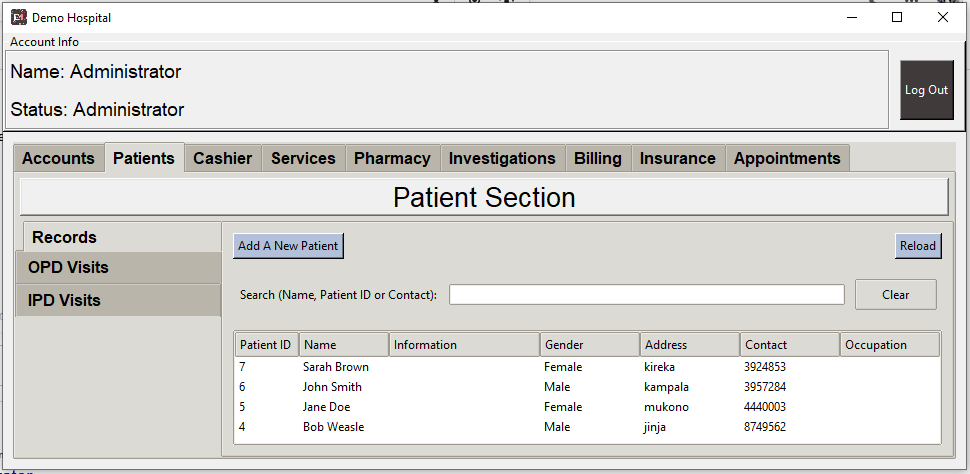
Under Records tab, click Add A New Patient
Fill in the relevant information
Edit/delete patient information
Click any patient in the list and edit as necessary
You can also add a patient visit or create an appointment
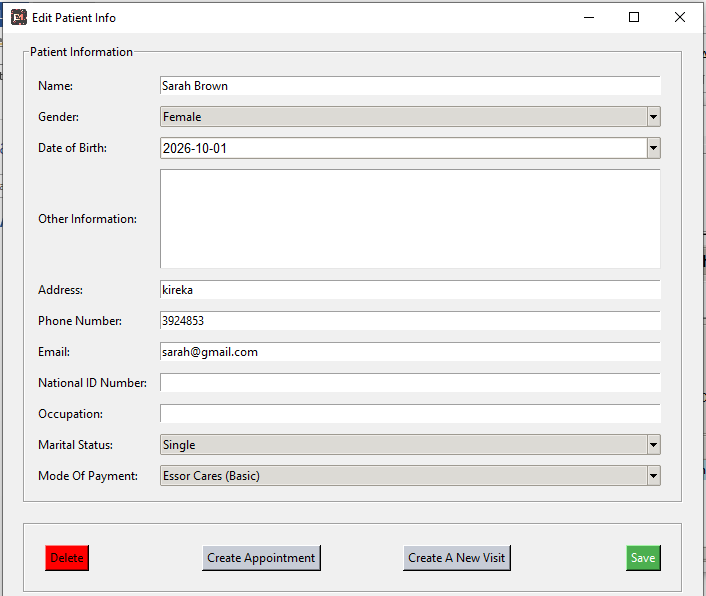
In the “Patient Section”, under the “Records” tab, search and select the patient that has come for a visit.
In the popup, click “Create A New Visit”.
Another popup will appear
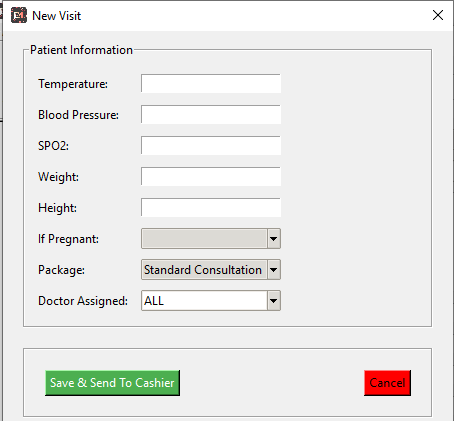
Enter the patient vitals and other information (Not a must).
Once done, click on “Save & Send To Cashier”.
Only patients that have paid can appear under “OPD Visits” after activation by the cashier.
Therefore after the receptionist, the next point is to the Cahier’s desk.
Hints; It is much easier to search a patient ID instead of typing in long names.
In the “Cashier Section” under the “OPD Visits” tab, the cashier can search or select the patient.
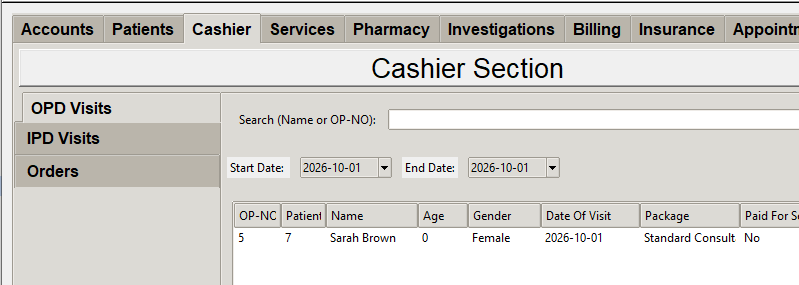
On selection of a patient, a popup will appear as shown below.
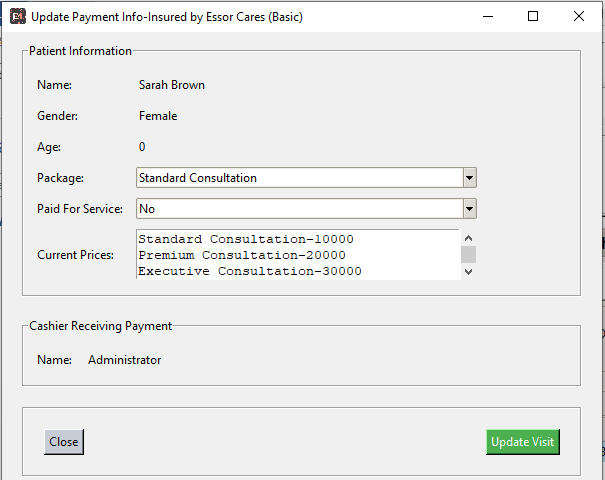
Choose the consultation package.
Confirm payment for services
No-if no payment was made
Insured-after confirmation with insurance company
Yes-after getting the cash from the patient
Click “Update Visit” to activate the patient OPD Visit.
Now that the visit is active, the doctor can now access the patient.
Therefore the patient can now go into the consultation room.
In the “Patient Section” under the “OPD Visits“ tab, a list of activated patients will appear.
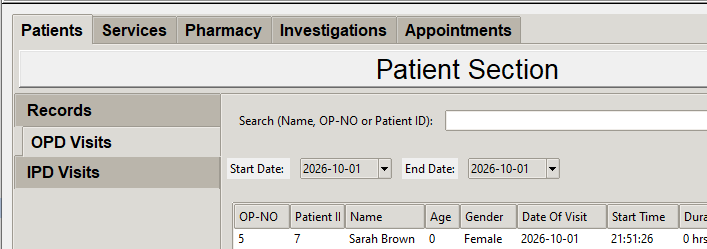
Select the patient and a popup window will appear as shown below.
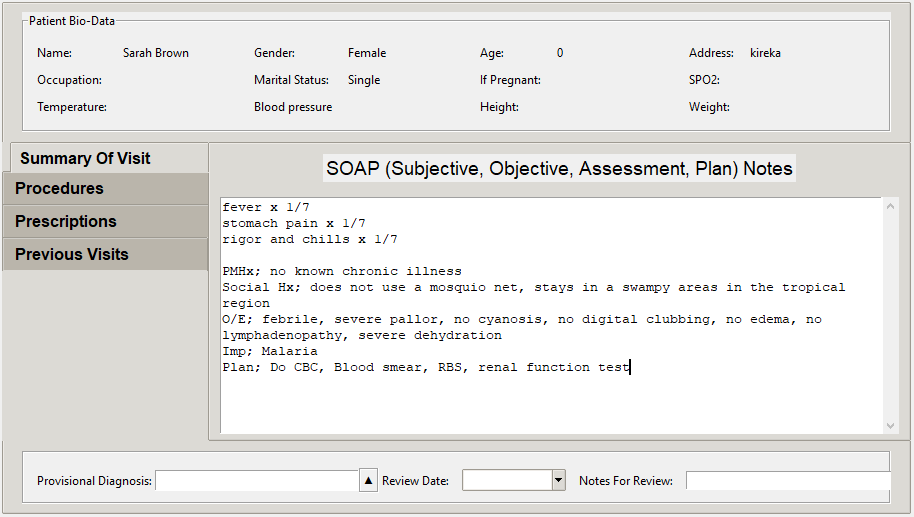
In this popup, the doctor can document and request for various procedure, labs, medication etc.
“Summary Of Visit” tab; here the clinician documents a summary of the visit.
“Procedures” tab; to request for services/procedures such as Labs, Imaging, Fees.
“Prescriptions” tab; to request for drugs and consumables.
“Previous Visits” tab; to see the previous visits.
Once the clinician is done documenting, the patient can either go to the lab for investigations or to the pharmacy for medication.
In the “Investigation Section” requested lab tests, procedures, fees can be seen.
In the “Pharmacy Section” under the “Prescriptions” tab, various drug prescriptions will appear.
In the “Billing Section” you can view and document the expenditure of any patient by each visit.
This is important especially for the insurance patients.
Are you willing to try out the software in your facility?
Contact us on 0752074238/0771664799 for more information.
Organization: The people, entity or purchaser of the product.
Devices: This refers to desktop or laptop computers
This can done by our team on the organization’s premises.
Made available once payment is made.
Software installation, modification of settings and testing is done on the organization’s premise.
The software works on Windows, Linux and Apple systems.
This is where the data is stored, retrieved, written and deleted from.
Onsite server with a static dedicated IP (This can be NAS (Network storage system)
Computers
Network switch
Ethernet cables
No Monthly subscriptions
Independent of internet shutdowns
Initial cost is high
Requires computer knowledge
Computers
No Monthly subscriptions
Independent of internet shutdowns
Initial cost is high
Requires computer knowledge
These are the devices used to communicate with a server.
The number can be range from 3 to more depending on the organization’s setup.
Our team recommends at least 7 devices;
1 Device for the reception
1 Device for the cashier/biller
1 Device for consultation room
1 Device for ward
1 Device for the laboratory/procedures/investigations unit
1 Device for the pharmacy
1 Device for the administrator
Ability to handle power black outs
Accessibility to internet
The software uses a “Concurrent User” licensing model. This means that one purchase can be accessed by all individuals in the organization.
Software |
1,200,000 |
Onetime purchase and installation fee (all computers on premise) |
Training |
800,000 |
For every training session (3 days training session onsite) |
Hardware |
0 |
Variable, as an organization may have its own hardware setup |
Support |
300, 000 |
Yearly |
Maintenance |
0 |
One time purchase that will not be maintained |
Server |
200,000 |
Every month for those without servers |
Expanding |
100,000 |
For every visit to add computer/s to the system |
Our team is willing to support you through the experience of the EMR however it will not be held responsible for any data loss.